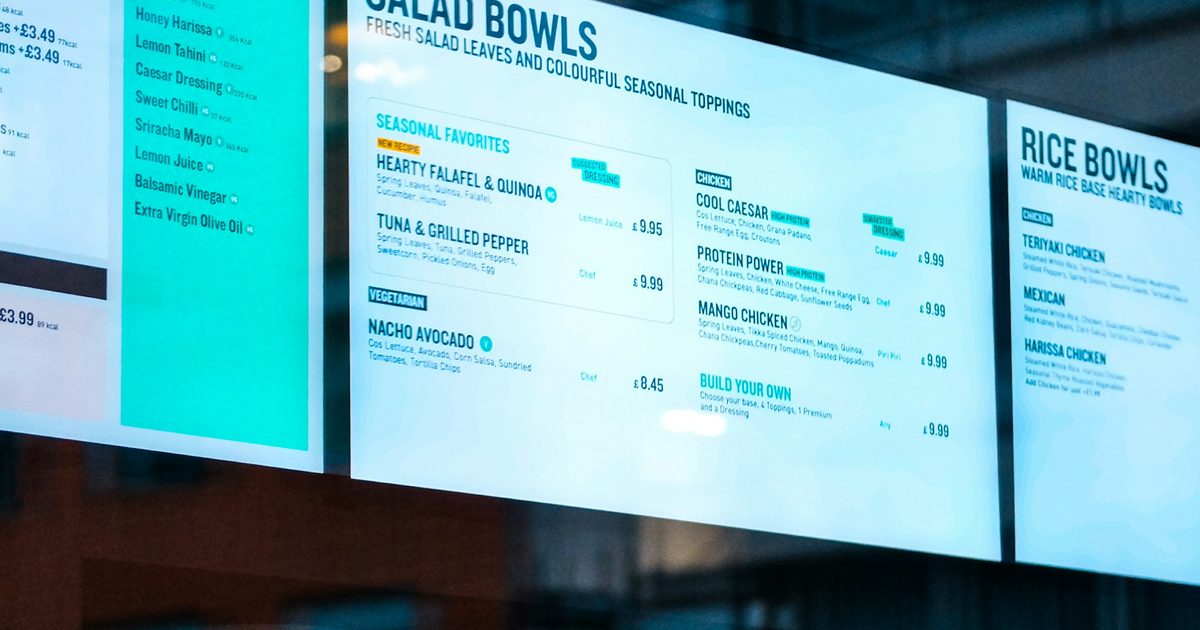
A television on the wall is the cheapest screen a business can buy, and often the most neglected. It plays a slideshow from a USB stick, the offer on it ended last month, and changing it means finding the laptop with the file and walking to the screen. Android digital signage fixes that without new hardware: a small player app on an Android TV or TV box, a web portal where you manage what plays, and a pairing code that links the two.
This guide explains how Android-based digital signage works, what you need to start, how to set up a screen and how to keep a handful of screens (or a few hundred) up to date without visiting them.
What "Android-based digital signage" means
Digital signage software has two halves. The portal is a website where you upload pictures and videos, put them in order and decide which screen shows which playlist. The player is the part that runs next to the screen and shows the content full screen, in a loop, all day.
Android-based signage simply means the player is an Android app. That matters because Android is already inside most of the inexpensive hardware a business has to hand: Android TVs, plug-in TV boxes, tablets on stands and many touch kiosks. Instead of buying a dedicated signage media player, you install the app from Google Play on the device you have, and it becomes a managed screen.
What you need to start
- A screen. Any TV or monitor. Portrait screens work too, for menu boards and window displays.
- An Android device to run the player. An Android TV, an Android TV box plugged into an ordinary TV, an Android tablet or an Android kiosk.
- An internet connection to receive playlist changes. Once content has reached the screen, a short drop in the connection should not blank it.
- A browser on a phone or computer to manage everything from the portal.
No Android device at the screen? Our player also runs as a web page, so a smart TV's own browser, a PC behind a monitor or any tablet can play the same playlist.
Setting up a screen in four steps
- Create an account in the portal and confirm your email. Our digital signage software has a free plan, so you can start without a card.
- Upload content and build a playlist. Add images (and videos on a paid plan), arrange the order and set how many seconds each image stays on screen. Videos play to the end.
- Pair the screen. Install the player app on the Android device and open it. It shows a six-character code. Type that code into the portal, give the screen a name and choose landscape or portrait. There is no password to type on a TV remote.
- Assign the playlist. The screen starts playing. From then on, anything you change in the portal reaches the screen on its own.
Content that works on a screen
Signage is read from a distance, in passing, in a few seconds. A few habits make the difference between a screen people read and one they walk past:
- One message per slide. A headline, a picture and, at most, a price or a call to action. If it needs a paragraph, it belongs on a printed sheet.
- Design for the orientation. A menu board mounted upright should get portrait artwork rather than landscape slides rotated sideways.
- Set durations by how much there is to read. A picture with three words can move on in a few seconds; a menu panel needs longer.
- Keep the playlist short and current. A loop of a few slides that changes every week gets noticed. A long loop that never changes becomes wallpaper.
- Use separate playlists for separate places. The reception screen and the canteen screen have different audiences. One account can hold several playlists, each assigned to one or more screens.
Keeping screens running without site visits
The real saving of managed signage is not the first set-up, it is the hundredth change. A few features decide whether screens look after themselves:
- Starts on boot. When the TV or box powers on in the morning, the player launches and goes full screen without anyone touching the remote.
- Screen status. The portal shows which screens are online and when each was last seen, so a box that was unplugged is noticed from the office rather than by a customer.
- A player link you control. Each screen has its own link. Reset it from the portal and an old or leaked link stops working at once, while the playlist and settings stay.
- Remote changes. Change a playlist from your phone and every paired screen picks it up, whether it is in the next room or another city.
Free plan, paid plan or a custom version?
A café with one television usually needs nothing more than the free plan: a set number of images on one screen. When you need videos, more images or more screens, a paid plan raises those limits on the same account, and nothing is deleted if you later move to a smaller plan.
Some organisations need more than a standard product: players for iPad or a Windows desktop application, the portal in their own branding, or content fed automatically from their own systems such as a menu database or a production dashboard. That is a custom version, built to your requirements. If you want an Android TV app beyond signage, see our Android TV and smart TV app development.
Getting started
The quickest way to judge Android signage is to try it on a screen you already own: create a free account, install the player on an Android TV or TV box, pair it and change the playlist from your phone. If you have a larger rollout in mind, tell us about your screens and what they need to show.
Frequently asked questions
Related solutions and services

Digital Signage Software
Turn any screen into a display you run from a web portal: upload images and videos, build a playlist, pair the screen with a code. Free plan with self sign-up, Android TV app on Google Play and a web player; custom versions for iPad, Windows and your own branding.
Learn more
Android TV & Smart TV Apps
Android TV and smart-TV apps and signage players.
Learn moreMore from the blog
ESS Kiosk Guide: HR Self-Service for Staff Without a Desk
What an ESS kiosk is, what workers can do at one, how sign-in and privacy work on a shared screen, and how to roll one out alongside the HR system you already have.
Remote Kiosk Management: How to Monitor, Update and Report on a Kiosk Fleet
What remote kiosk management covers: health monitoring, alerts, remote fixes, safe over-the-air updates and kiosk reporting that turns uptime into a measured figure.
Online Safety Induction for Contractors: A Practical Guide
How online safety induction works for contractors and site workers: lessons that cannot be skipped, a timed test, a QR certificate, approvals and a gate scan, with a record you can find later.
Tell us the journey, the sites and the hardware you already have — every engagement is scoped and quoted individually.